
Before you start
You receive three different credentials—use each in the correct place:
- API Key
sk-value used to authenticate API requests.- API endpoint
https://api.buytoken.work. Send every API request here.- Username and password
- Use these to sign in, inspect usage, and change your password. They are not your API key.
Use only https://api.buytoken.work
The console is at https://buytoken.work/console. Open it in a browser to inspect usage, manage keys, and top up. Do not mix the two addresses: https://api.buytoken.work is the API endpoint for clients, https://buytoken.work is the human console and must not be used as a client API endpoint.
Which models you can call depends on your key’s group: the cc group calls Claude models, codex calls GPT models, kimi calls Kimi, and the DeepSeek group calls DeepSeek. Supported providers are listed on the Supported models. Prices and group notes are on the Model pricing page.
Connect Claude models
Use Claude Code with CC Switch to manage providers. Install CC Switch once; Codex below uses the same app.
-
Install Node.js and Claude Code
Install Node.js 18+ from nodejs.org, then run this in a terminal (PowerShell on Windows, Terminal on Mac/Linux):
npm install -g @anthropic-ai/claude-code -
Install CC Switch
Download the installer for your OS from github.com/farion1231/cc-switch and complete the setup.
-
Add a provider in CC Switch
Open CC Switch, add a provider, choose “Custom configuration”, and fill in:
- Name
- Any name, such as “My relay”
- Endpoint
https://api.buytoken.work(if it does not work, append/v1and retry)- API Key
- Your
sk-key - API format
- Anthropic
Use this model mapping, then save and enable the provider:
- Default
claude-sonnet-5- Opus
claude-opus-5- Haiku
claude-haiku-4-5-20251001
-
Start using it
Run
claudein the terminal to start.VSCode, Cursor, and Trae users can install the Claude Code for VSCode extension—no sign-in or extra setup required.
Connect GPT · Codex
To use gpt-5.6-sol models, follow this section after installing CC Switch above.
-
Install Codex CLI or Codex Desktop
Both clients share one configuration. Install either or both; the CLI requires Node.js 18+:
npm install -g @openai/codexFor a graphical interface, download the official desktop app from openai.com/codex.
-
Add a Codex provider in CC Switch
Open CC Switch, select the Codex tab, add a provider, and choose “Custom configuration”:
- Name
- Any name, such as “buytoken-codex”
- Endpoint
https://api.buytoken.work/v1(/v1 is required)- API Key
- Your
sk-key - API format
- OpenAI
After saving and enabling it, CC Switch writes the endpoint and key to
~/.codex/config.toml; both CLI and desktop use this file. -
Start using it
Run
codexto enter the interactive UI and use/model gpt-5.6-solto switch models. In the desktop app, enter the model ID when creating a conversation.If the client still uses old settings after a CC Switch change, restart it.
Generate images with gpt-image
Codex’s built-in image_gen is a capability hosted by OpenAI and does not use our endpoint, and its fallback script only accepts b64_json while our image API stores the result and returns a link, so neither path works here. To generate images from Codex, switch the model to gpt-image-2: the relay treats the request as image generation, saves the image under ~/.codex/generated_images/, and also puts the image link in the reply text.
Add a profile to ~/.codex/config.toml; your existing chat model is unaffected:
[model_providers.buytoken]
name = "buytoken"
base_url = "https://api.buytoken.work/v1"
wire_api = "responses"
requires_openai_auth = false
# Or delete the line below and use env_key = "BUYTOKEN_API_KEY" instead
experimental_bearer_token = "sk-your-key"

[profiles.image]
model = "gpt-image-2"
model_provider = "buytoken"
Start the session with --profile; single-shot is the most reliable (Codex uses only the last message as the prompt):
codex --profile image
codex exec --profile image "a ginger cat, realistic photography"
If a session is already open, you can also run /model gpt-image-2.
Codex does not send a size or quality, so output is fixed at 1024x1024 and the upstream default quality. To control those, call the image API directly; data[0].url in the response is the image:
curl -sS https://api.buytoken.work/v1/images/generations \
  -H "Authorization: Bearer sk-your-key" \
  -H "Content-Type: application/json" \
  -d '{"model":"gpt-image-2","prompt":"a red bicycle","size":"1536x1024","quality":"low","n":1}'
Available models: gpt-image-2, gpt-image-2.5-flare, gpt-image-2.5-sunburst, all billed per image. Generation takes 30–120 seconds, so do not set a short client timeout; a disconnect part-way is still billed. For batches, call the API directly.
Connect WorkBuddy
WorkBuddy is Tencent's AI workspace for office tasks. You can add a third-party model in its graphical settings, with no config file to edit.
Before you start, make sure WorkBuddy is installed and signed in, and that you have a key starting with sk-, and that the key's group includes the model you want. The model name you enter must match the model ID in that group exactly. Look it up in Supported models or Models and pricing.
-
Open model settings
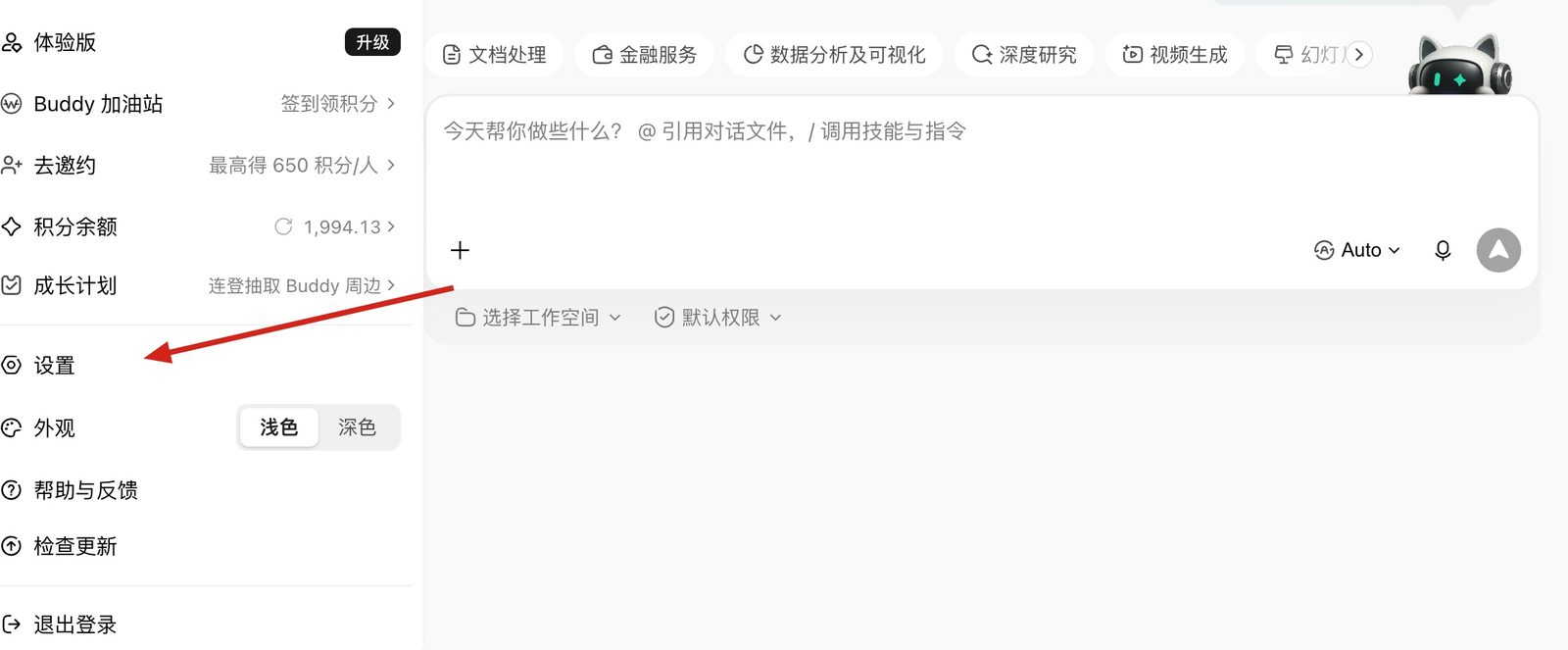
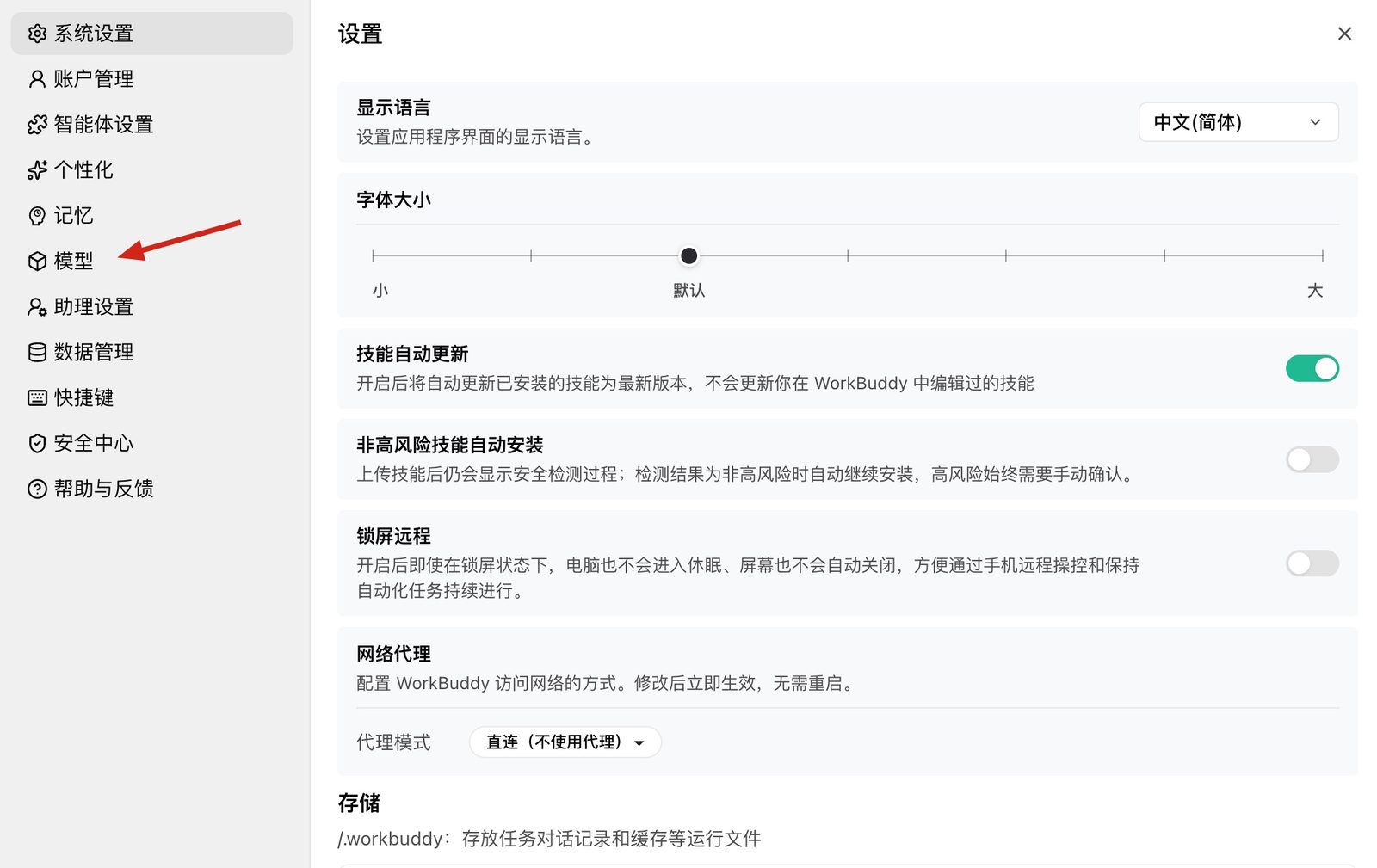
Click the account area at the bottom left to open the menu, choose Settings, then choose Models in the left navigation.
-
Add a custom model
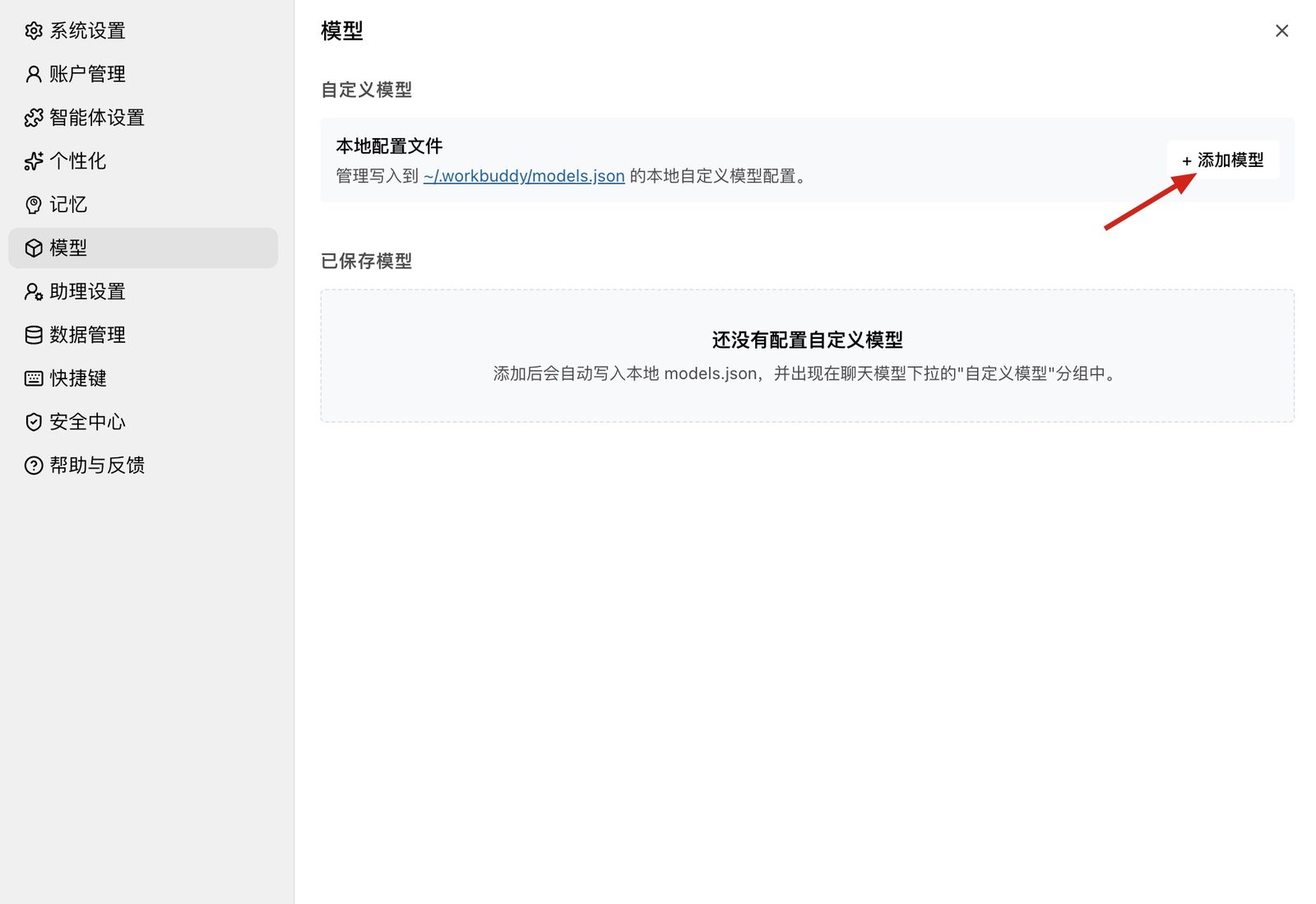
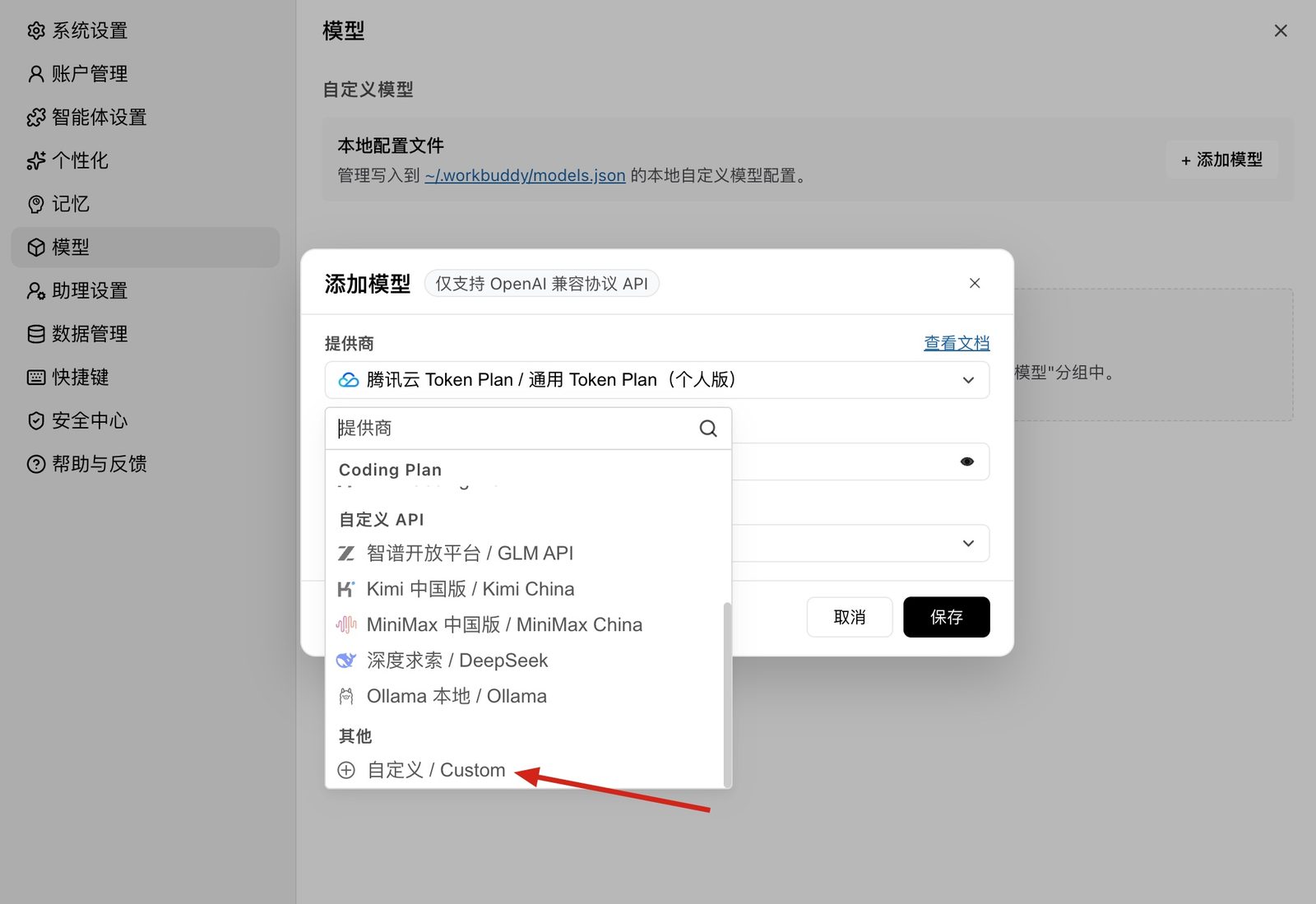
In the Custom models area, click Add model at the top right, open the Provider list, and pick Custom under Other.
-
Fill in the model settings
- API endpoint
https://api.buytoken.work/v1(/v1 is required)- API Key
- Your
sk-key - Model name
- A model ID from the key's group, for example
ccgroup:claude-opus-4-8 - Advanced options
- Tick what the model supports. For Claude models you can enable tool calling, thinking mode, and allow turning thinking off; leave the rest at their defaults.
Click Save at the bottom right. WorkBuddy writes the settings to
~/.workbuddy/models.json.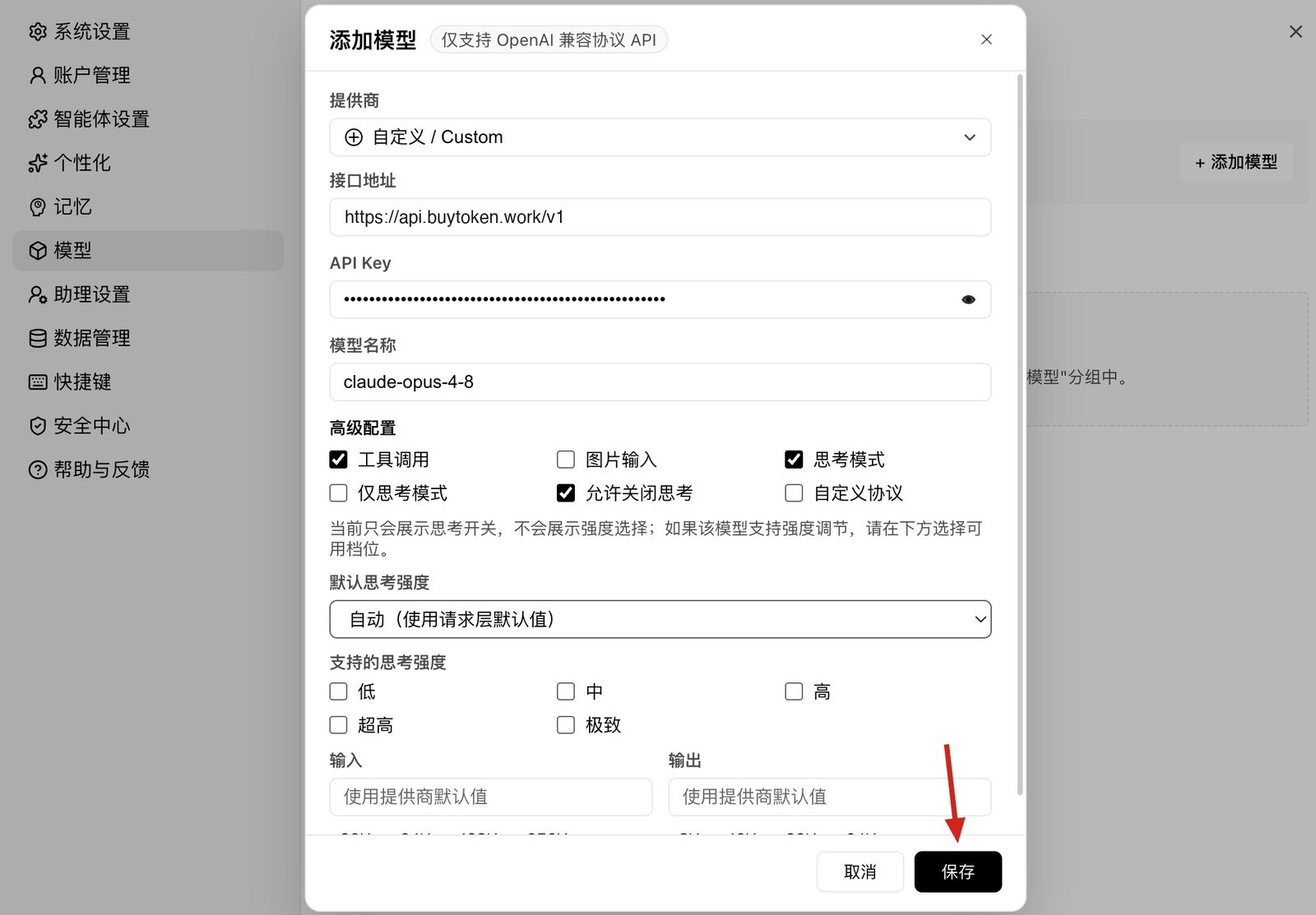
-
Start using it
Go back to a task conversation, open the model selector at the bottom right of the input box, choose the model you just added, and send a message. A reply means it works.
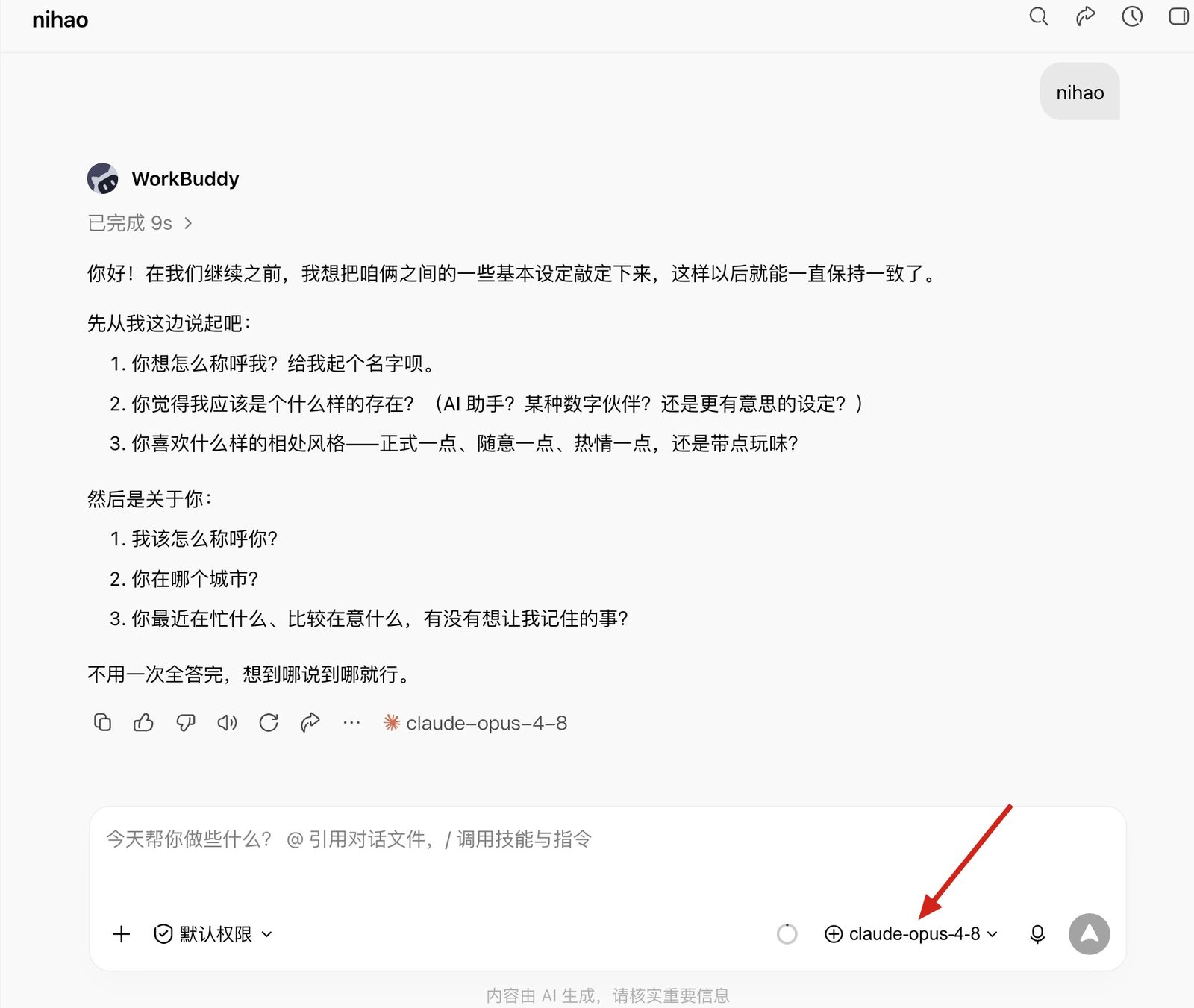
Do not share your key or show it in public. Cover it completely before posting a screenshot or recording to ask for help.
Alternative: environment variables
If you prefer the command line, two environment variables are enough.
Mac / Linux
Edit ~/.zshrc (bash users: ~/.bashrc), append these two lines, save, then run source, then run claude:
export ANTHROPIC_BASE_URL=https://api.buytoken.work
export ANTHROPIC_AUTH_TOKEN=sk-your-key
Windows
Run these two lines in PowerShell (persistent). Close and reopen PowerShell afterward or the changes will not apply.
[System.Environment]::SetEnvironmentVariable("ANTHROPIC_BASE_URL", "https://api.buytoken.work", "User")
[System.Environment]::SetEnvironmentVariable("ANTHROPIC_AUTH_TOKEN", "sk-your-key", "User")
OpenAI-compatible clients
OpenAI-compatible tools such as Codex require /v1:
export OPENAI_BASE_URL=https://api.buytoken.work/v1
export OPENAI_API_KEY=sk-your-key
Verify the setup
Enter claude and send any message. A response confirms the setup. You can also use curl; returned JSON means success:
curl -sS https://api.buytoken.work/v1/messages \
  -H "x-api-key: sk-your-key" \
  -H "anthropic-version: 2023-06-01" \
  -H "content-type: application/json" \
  -d '{"model":"claude-sonnet-5","max_tokens":16,"messages":[{"role":"user","content":"hi"}]}'
The gateway supports /v1/messages, /v1/responses and /v1/chat/completions; pass the key with x-api-key or Authorization: Bearer.
Using the console
Open https://api.buytoken.work/console in a browser and sign in with your account credentials to access:
- Overview
- See balance, monthly spend, and recent requests at a glance.
- My Keys
- View, copy, rename, disable, and create keys.
- Usage logs
- Inspect time, model, token counts, and charge for every request; open a row to see the calculation.
- Account settings
- Change your password; we recommend doing this after first sign-in.
After first sign-in, change the initial password, confirm your requests appear in Usage logs, and check your balance. Top up from Wallet using WeChat Pay.
Troubleshooting
401 Unauthorized
The key is not taking effect, usually because another config is still active. Check /status in claude for the gateway Base URL, disable other providers in CC Switch, and look for leftover values in ~/.claude/settings.json (Windows: %USERPROFILE%\.claude\settings.json).
403 Your client is not authorized
Run /logout in claude, then start it again.
Insufficient balance, but the console still shows credit
Leftover config from another relay. Delete the config directory and follow this guide again.
# Mac / Linux
rm -rf ~/.claude

# Windows PowerShell
Remove-Item "$env:USERPROFILE\.claude" -Recurse -Force
The model name is correct but the request fails
The group is probably wrong: a Claude-group key cannot call gpt-*, and a Codex-group key cannot call claude-*. Check the group on My Keys or the pricing page. Copy model IDs exactly, including date suffixes—claude-haiku-4-5 fails; use claude-haiku-4-5-20251001.
Unable to connect, or a country restriction
The config did not apply; this service does not need a proxy. Reopen PowerShell after changing Windows environment variables; on Mac/Linux source ~/.zshrc or ~/.bashrc, or open a new terminal.
Windows: scripts are blocked / claude.ps1 cannot load
PowerShell execution policy is blocking it. Run the command below and enter Y or A when prompted.
Set-ExecutionPolicy -Scope CurrentUser -ExecutionPolicy RemoteSignedWindows: claude is not recognized as a command
npm’s global path is not on PATH. The command below prints it (usually C:\Users\<you>\AppData\Roaming\npm). Add it to PATH and reopen the terminal.
npm config get prefixWindows: git-bash is required
Install Git for Windows (git-scm.com/downloads/win) with defaults, then close and reopen PowerShell.
The VSCode / Cursor / Trae extension asks me to sign in
No sign-in is required. Reinstall the extension first; if that fails, set the endpoint and key explicitly in the extension settings.json.
{
  "claudeCode.preferredLocation": "panel",
  "claudeCode.environmentVariables": [
    {"name": "ANTHROPIC_BASE_URL", "value": "https://api.buytoken.work"},
    {"name": "ANTHROPIC_AUTH_TOKEN", "value": "sk-your-key"}
  ]
}
400 context_management: Extra inputs are not permitted
The client sent an experimental field the upstream rejects. Add this line in CC Switch env, save, and reopen the terminal.
"CLAUDE_CODE_DISABLE_EXPERIMENTAL_BETAS": "1"Two reliable fixes
Most setup issues are solved by deleting ~/.claude, reopening the terminal, and following this guide again. Long Claude Code sessions accumulate context; run /clear after each task to clear it.
Still stuck? Contact us: QQ 3963059079.